
UniFi VLANs and AirPlay
Objective
Create an internal network (LAN) that is separate from IoT devices, but still have limited communication back and forth such that media protocols such as multicast and AirPlay work. In this configuration, IoT devices are allowed to talk to each other freely and to access the internet, but only selectively to LAN (AirPlay being the main example in this demo). To verify after setup, you can connect a PC to the IoT network and try accessing devices on LAN (use ping or trying to access a shared volume). As bonus points, to make a further restricted setup, we will change IoT to a Guest Network; this prevents IoT devices from talking to each other at all. As IoT devices typically need to peer connections, this is not recommended without site-specific research.
Table of Contents
Test setup
- PC with iTunes (on LAN)
- Phone with Apple Music (on LAN WiFi)
- UniFi controller running the network application
- Managed switch
- A media enabled music player (I’m using a Yamaha RX-A1060 receiver) (on wired IoT).
Create Networks
Create the main and IoT networks.

LAN

IoT

Note: See the VLAN ID - make sure this is the same for this network throughout the process. IGMP Snooping seems to have no effect. I tested both, but then left it enabled.
Enable Multicast support

In the WiFi network for LAN, verify these settings:

Firewall
Create Firewall Groups

Note: the ports are highly specific to your environment. Not every port was objectively tested. Recommend investigation with Wireshark and is left as an exercise to the reader. For reference: UI.com
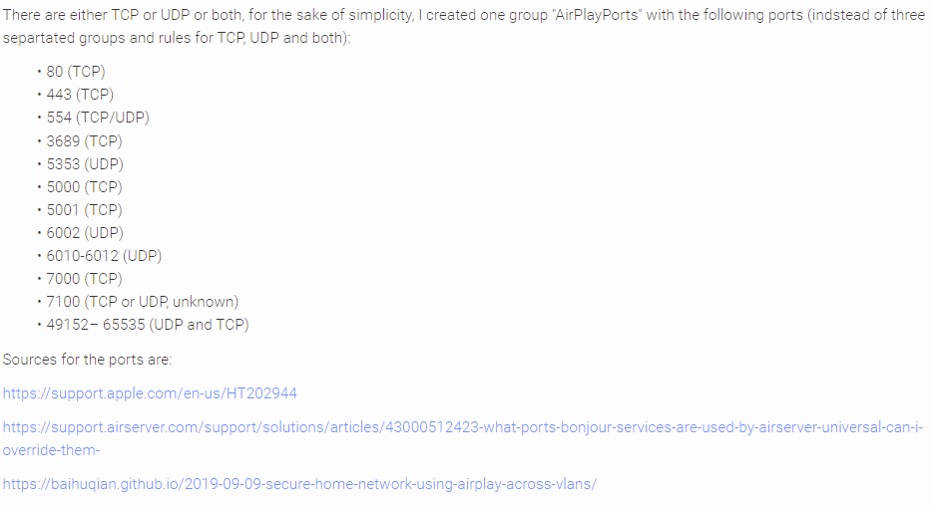

The previous two groups allow for quick changing of settings. The port group will be setup to allow IoT devices to broadcast back new sessions to the controlling devices on LAN. This configuration is not intuitive, as one typically thinks allowing ports open from LAN to IoT. However, the protocol works in such a way that mDNS allows you to initially see the IoT devices from LAN (and their IPs) and try to establish an initial connection. After that initial connection, the ports from IoT to LAN as new sessions are then required to complete the circuit, as it were.
The second group of IP address ranges are to be customized for your specific network. These will be used as an end rule to block anything that doesn’t match the allow rules. It should be composed of any networks in your setup you would like to secure from IoT (typically all).
Now that the two groups are made, start making these rules:
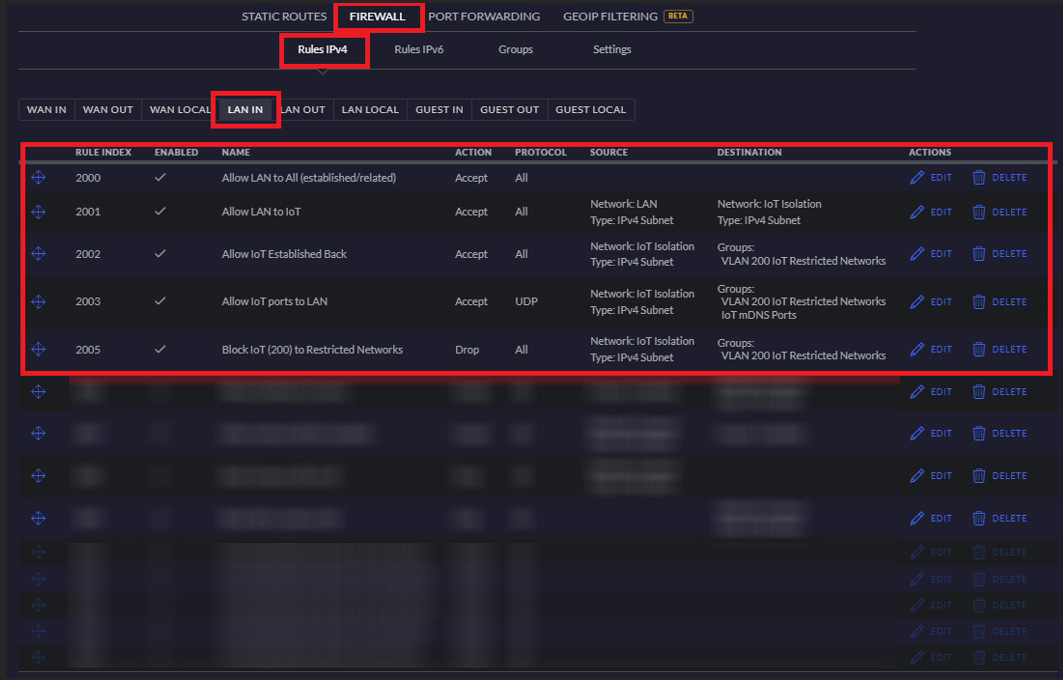
LAN In, in Ubiquiti’s parlance, is the first instance in which packets enter your LAN. Backwards from industry, as best I can tell, but so be it.
Remainder of rules
This says that LAN can access anything and is used as a launching off point.
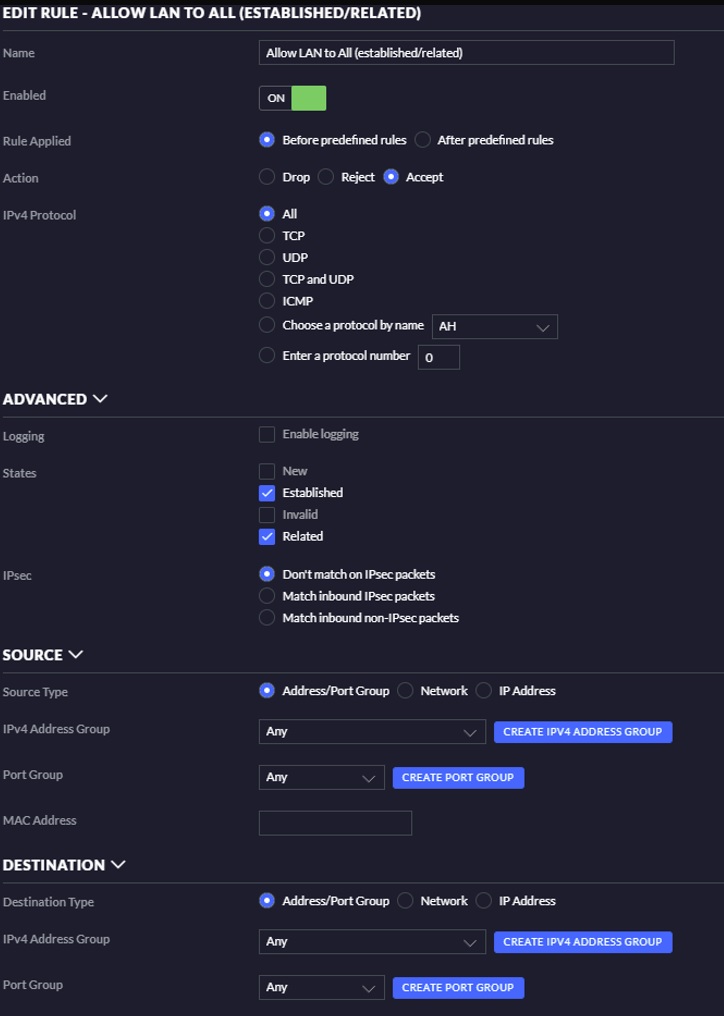
Allow LAN to IoT. This is essentially duplicate, but in case you lock down LAN as a whole, this will keep the setup working.

Allow IoT to LAN established/related. This says that after a device in LAN initially asks an IoT device for a connection, we will allow that initial talk-back from IoT to LAN, but only if the originating source was a device from LAN. Note that new is not checked. Also note the groups used for ease of setup and configuration later.
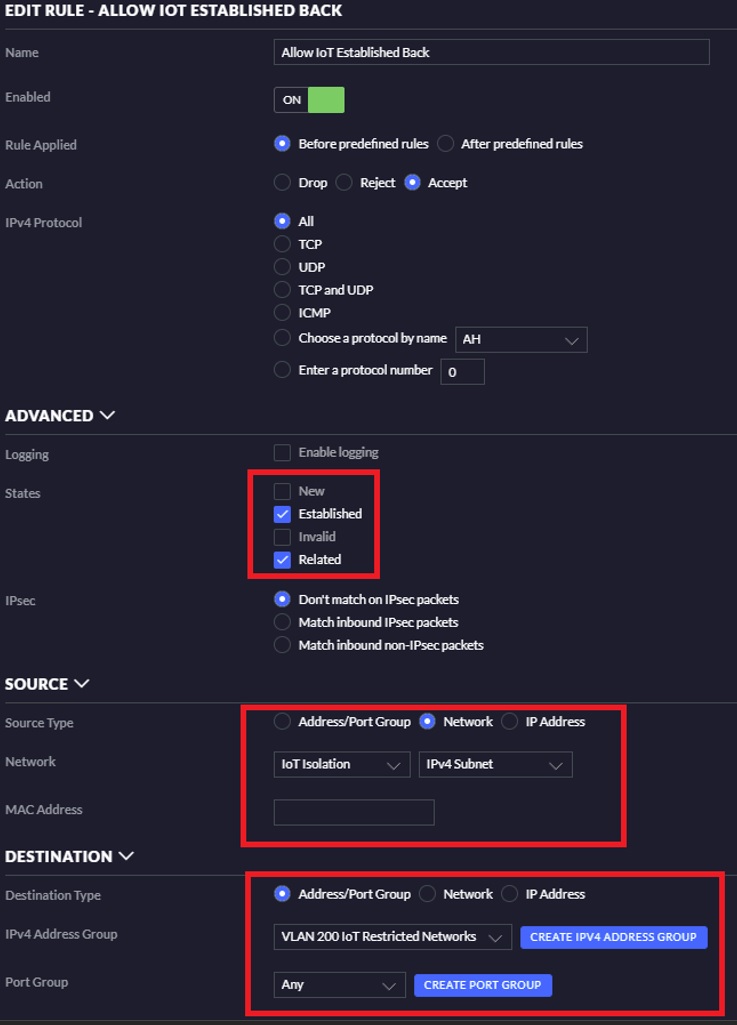
Allow IoT port groups. This is similar to the previous rule but different in a critical way: we are specifically allowing new connections to go from IoT to LAN, but only on specific ports, and only on specific protocols (no SSH, for instance). Update: Changing to UDP only seems to also work for my specific configuration and would be more preferable - the less protocols allowed the better. You will have to experiment on your own network as you add new IoT devices and modify as appropriate.

Finally, block anything else that doesn’t explicitly match the above criteria.

Apply the above settings, noting the order of the rules.
SSH
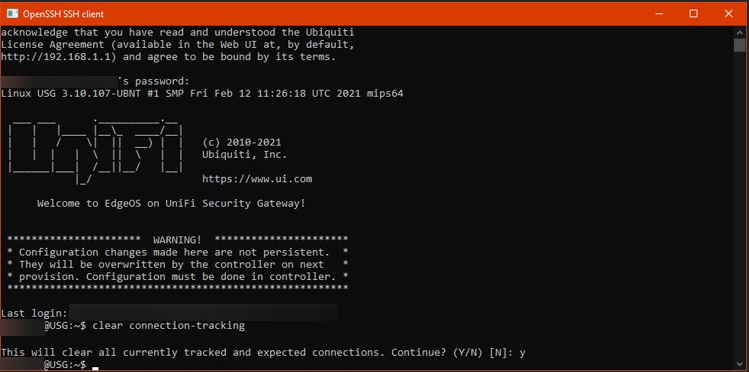
Settings are found under Site. Once the USG is done provisioning, ssh into it and clear connections. UI.com
clear connection-tracking

Testing
Now that the devices are setup and provisioned (you waited, right?), time to test. In my network, the receiver came online on the IoT network as expected, and I will test using my PC.


In this setup to test back access, I can assign the PC into the IoT network and play to the Yamaha. I also cannot access other devices, controller or ping other LAN-based devices. Moving back to the LAN network, I can still cast to the receiver as shown above. My phone on LAN WiFi also has no trouble.
That should be it. Close/reopen apps / reconnect to wifi, etc. This setup has been repeatable and testable for myself and some guinea pigs I verified this with. Reminder that all of the allowed ports are not explicitly tested and are more of a catch-all based on the AirPlay protocol.
References
- https://www.reddit.com/r/Ubiquiti/comments/p483ua/airplay_and_vlans/
- https://help.ui.com/hc/en-us/articles/115010254227-UniFi-USG-Firewall-How-to-Disable-InterVLAN-Routing
- https://community.ui.com/questions/Is-there-a-recommended-way-to-get-Apple-AirPlay-to-work-across-VLANs/80ccb2e8-ce73-4a37-9cc7-1530d4cdc870
- https://community.ui.com/questions/Airplay-across-VLAN-How-to-do/0362cb7f-f38c-43ba-b10e-c2e5cc9dbe16?page=1
- https://community.ui.com/questions/Solved-AirPlay-across-walled-off-VLANs/7435c86b-e857-4ebf-bdca-bfd8d67b6647